
Getting started only takes a few minutes.
Before beginning, you’ll need access to your Swallow API keys
Use your Swallow account to access the MCP section in the app, where your credentials are stored, alternatively check your initial email you received when signing up
If you’re new to Swallow, you can register for an account and we’ll provide your credentials during onboarding. If you already have a serff.ai account, you can find your MCP credentials in Settings → MCP → Copy the User Keys

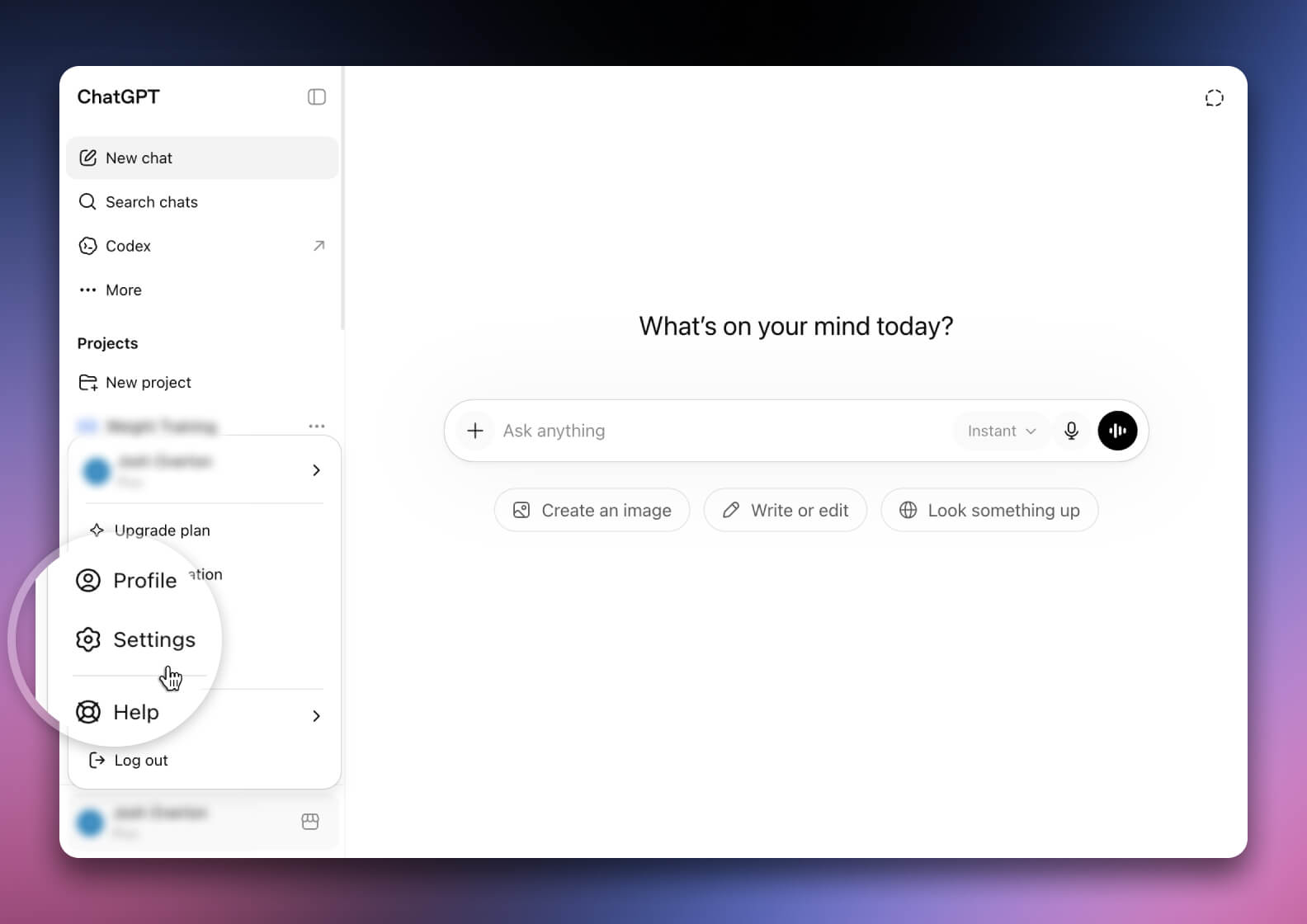
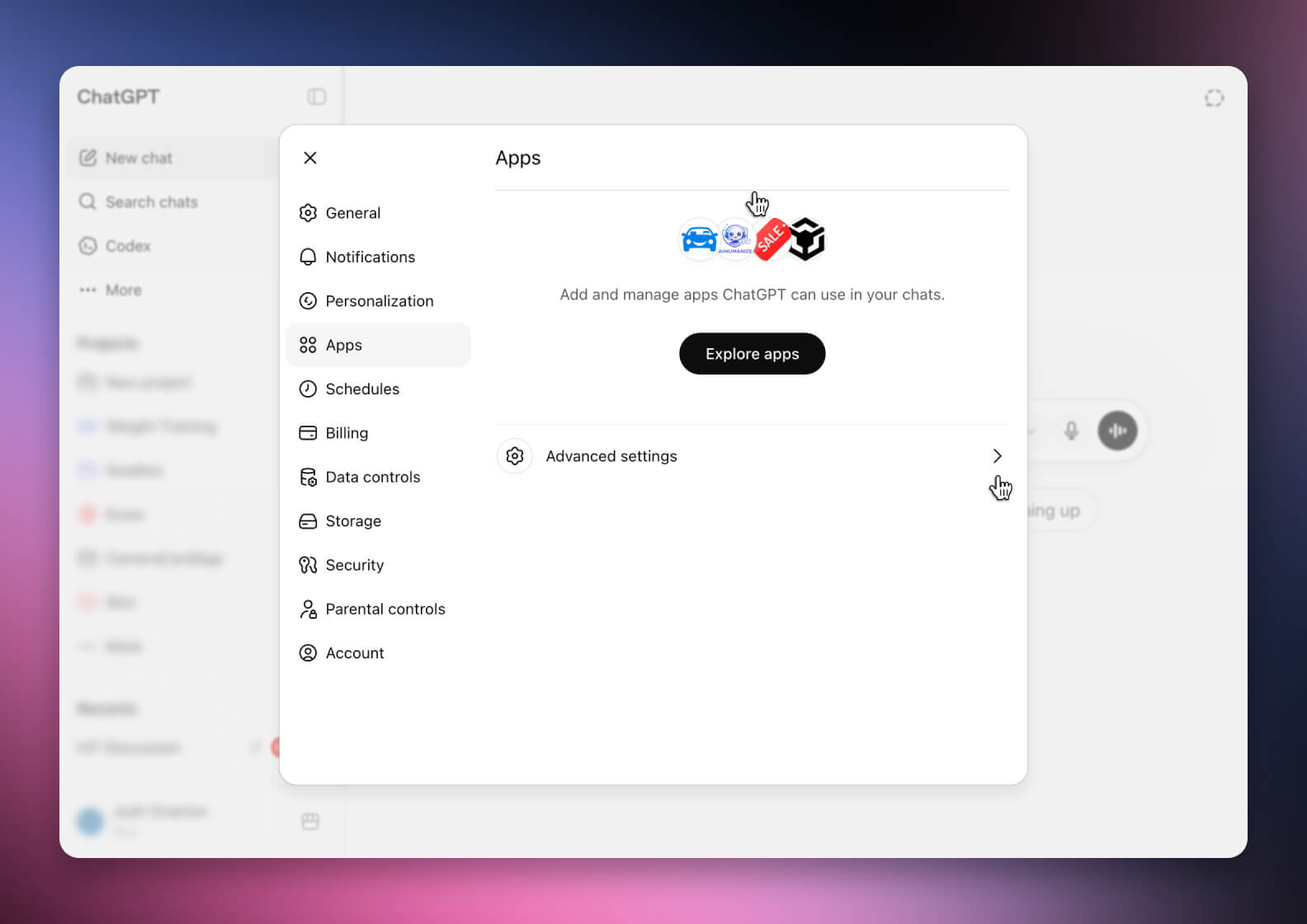
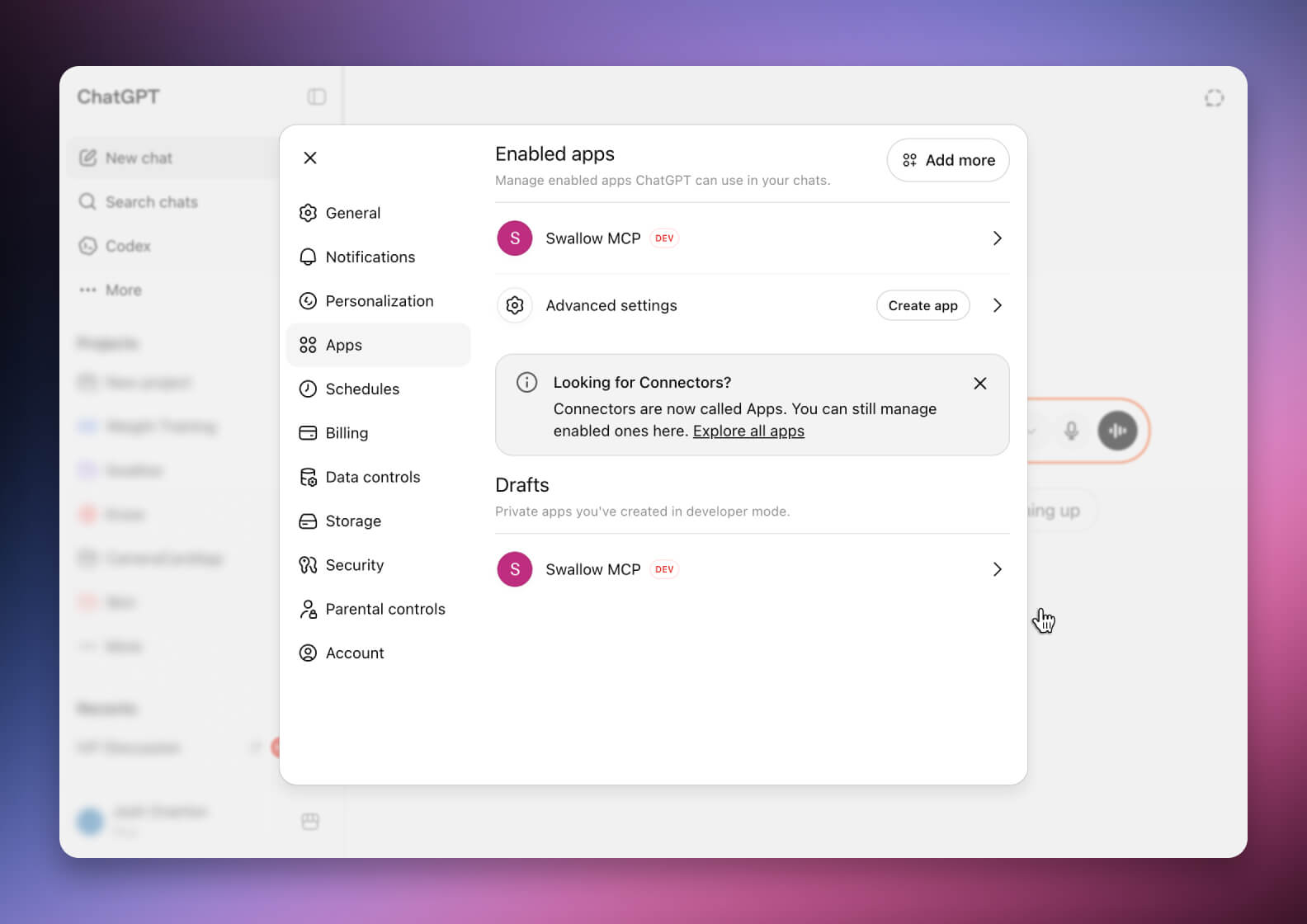
Click your profile picture and navigate to Settings. Then click on the Apps menu item and in there click Advanced Settings.
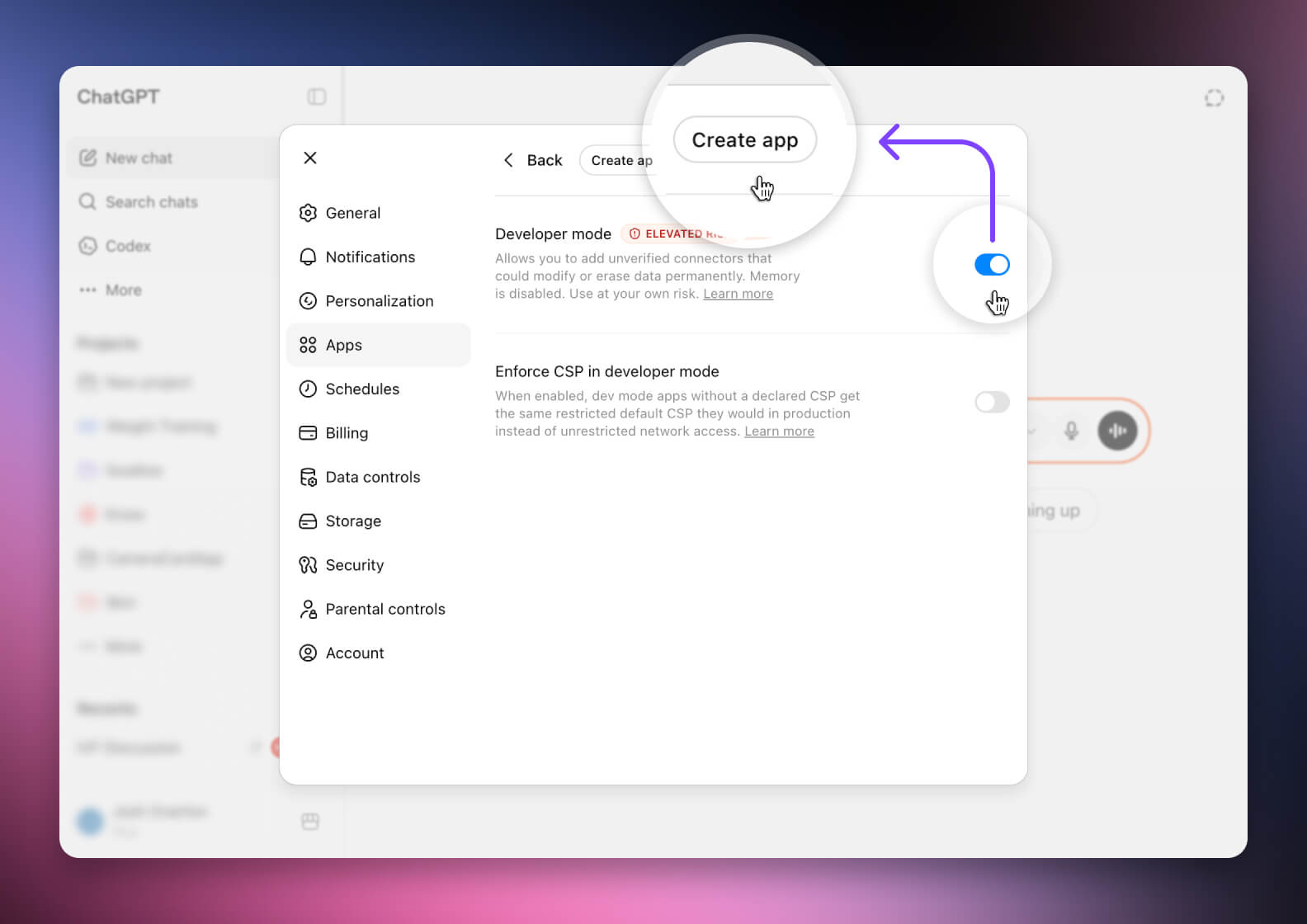
Click the toggle to enable Developer Mode and a new “Create App” button will appear at the top. Click “Create App”.
It’s worth noting that in Developer Mode ChatGPT will no longer retain memory and some UI elements will change. This can be toggled off or on again at any time but you won’t be able to work with the Swallow MCP server when it’s off.
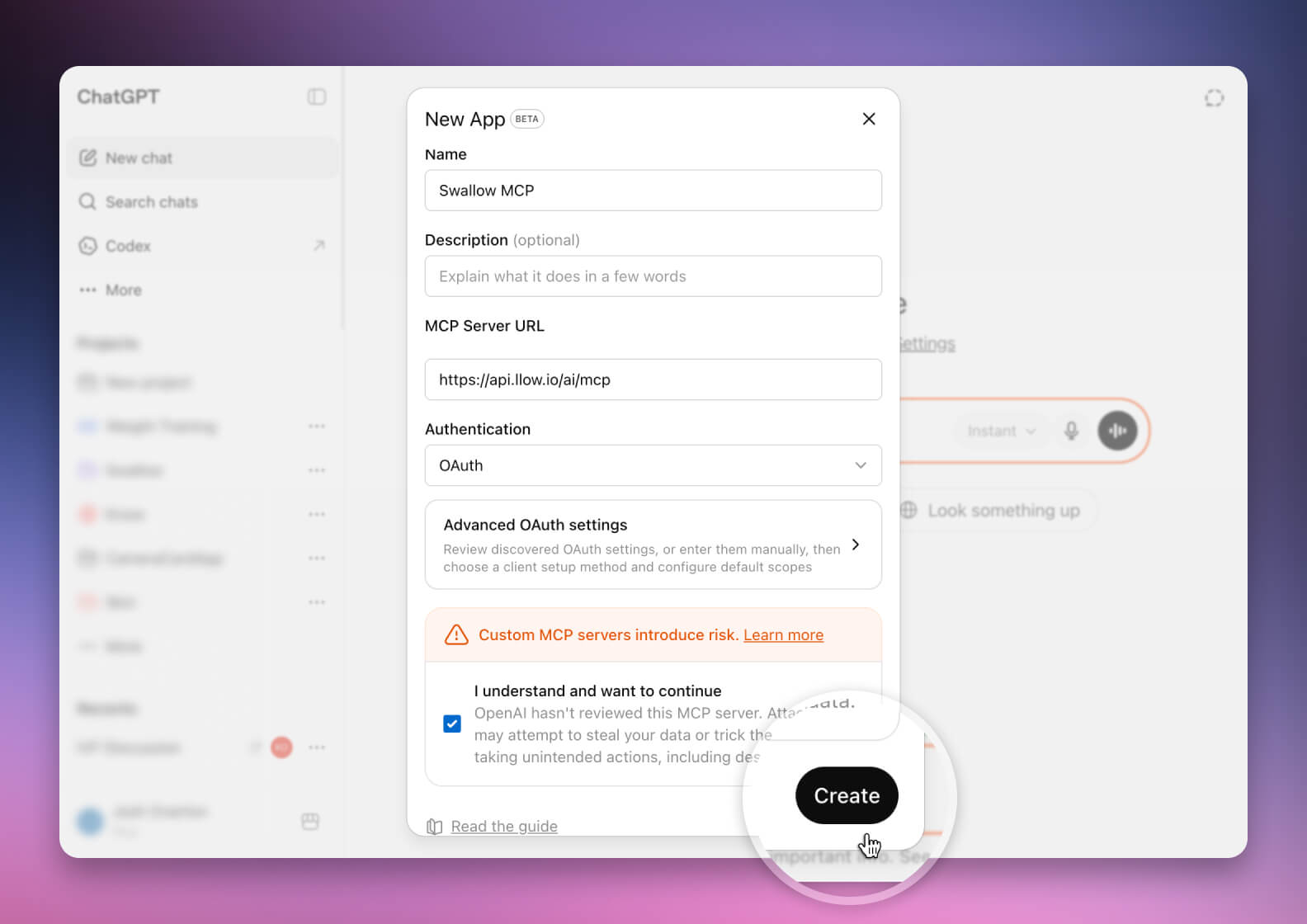
ChatGPT will prompt you for connection details and configuration values.
Enter the following as seen below:
SERFF MCP & https://api.serff.ai/mcp then click Create
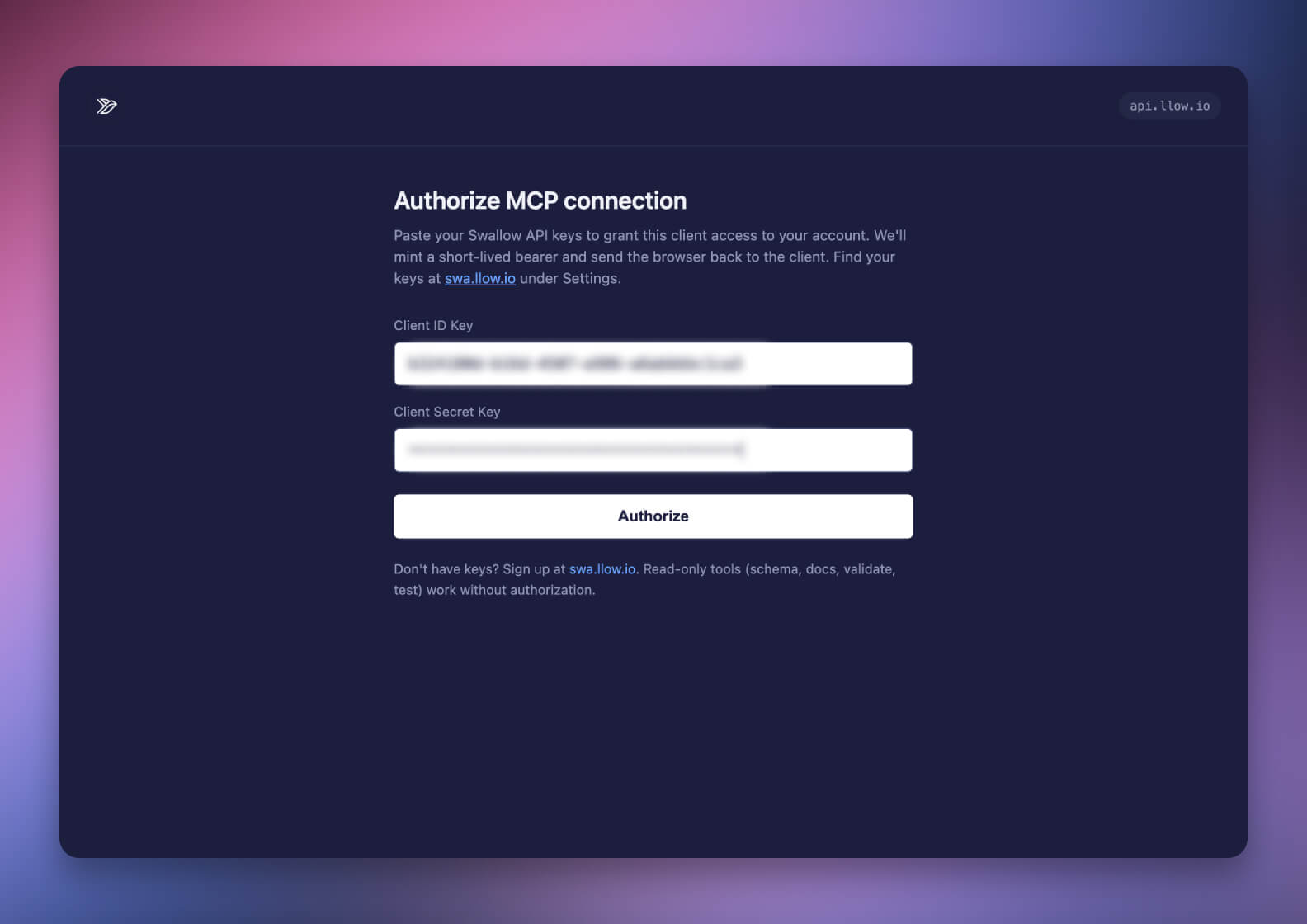
ChatGPT will prompt you to enter your Swallow API credentials , which we discussed in Step 1.
Pasting them in will securely and privately connect Swallow to your specific projects.
You can find your MCP credentials in Settings → API → Copy the User Keys
Once authenticated, you should now have access to SERFF search and filing tools directly within ChatGPT. With the integration active, ChatGPT can securely search, analyse and interact with insurance filings using natural language prompts.
Close the settings modal and begin a new chat to start exploring SERFF filings, rate changes, competitor activity and rating logic through conversation.
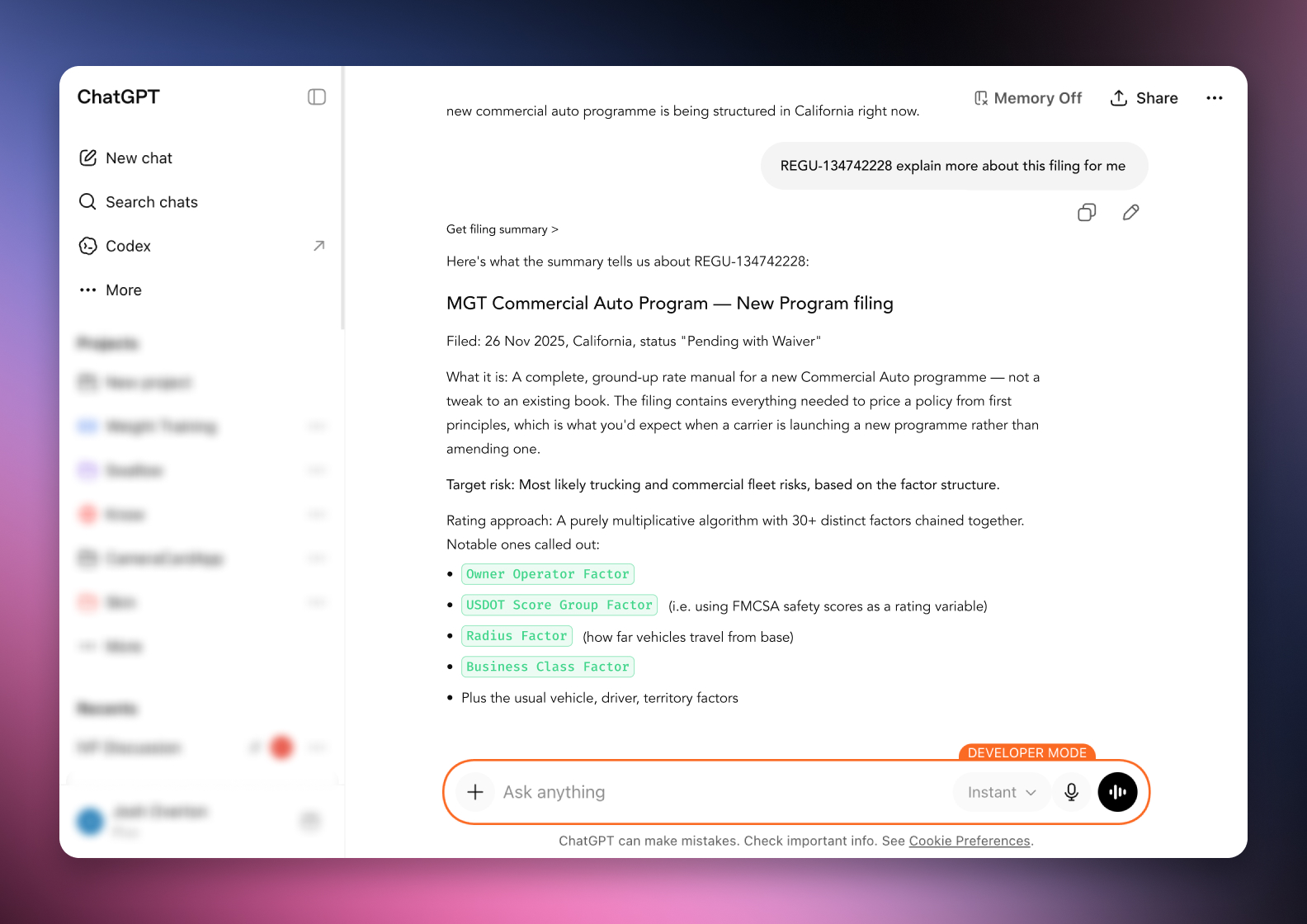




 ChatGPT
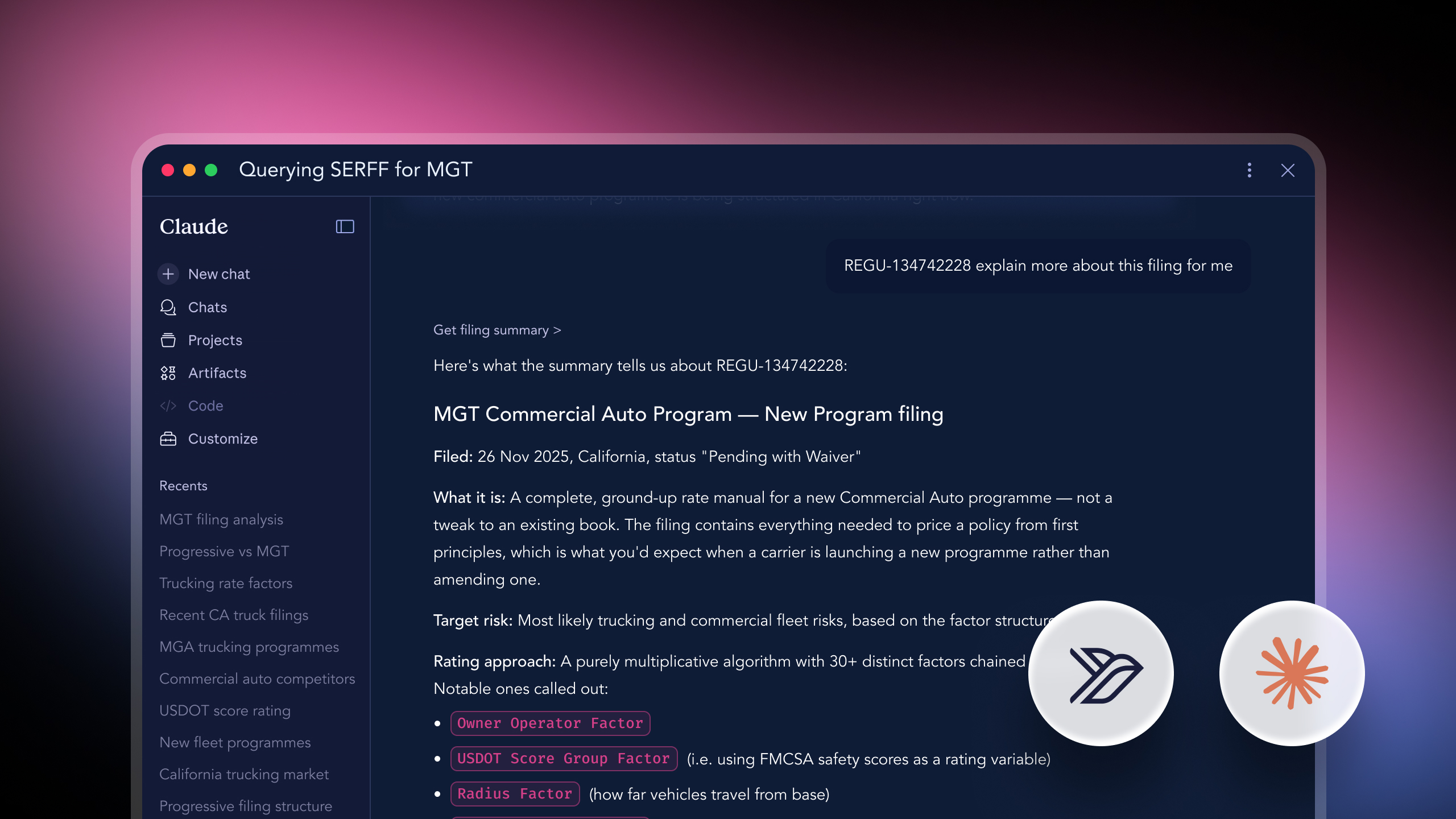
 Claude